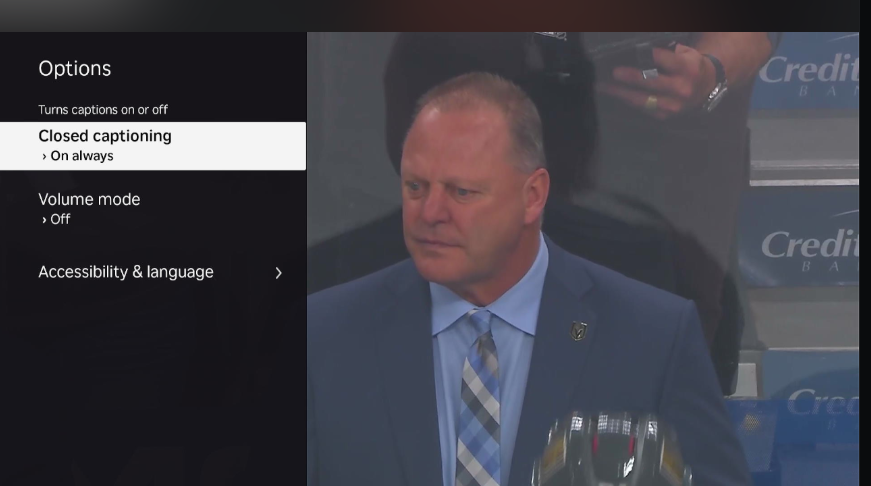
Closed captioning (CC) is a valuable feature that provides a text representation of the audio content in a video, making it accessible to a wider audience, including those who are deaf or hard of hearing, or those watching in noisy environments. To enable or disable this feature, you will typically find a specific icon within the video player's interface.
Look for an icon that commonly appears as 'CC', which stands for Closed Captioning. Alternatively, you might see an icon resembling a 'speech bubble'. Clicking on this icon will usually bring up a menu or toggle that allows you to activate or deactivate the closed captions. Some video players may offer additional options within this menu, such as customizing the appearance of the captions (e.g., font size, color, background) or selecting different language tracks if available. If you're having trouble locating the icon, try hovering your mouse over the video player or checking the player's settings menu, which might be represented by a gear icon.
Was this article helpful?
That’s Great!
Thank you for your feedback
Sorry! We couldn't be helpful
Thank you for your feedback
Feedback sent
We appreciate your effort and will try to fix the article