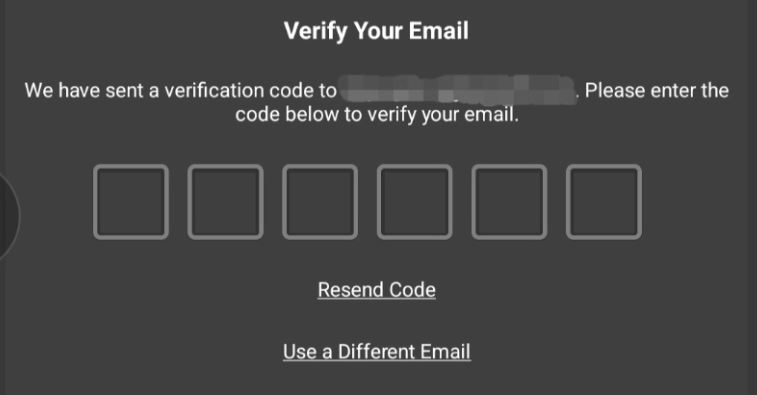
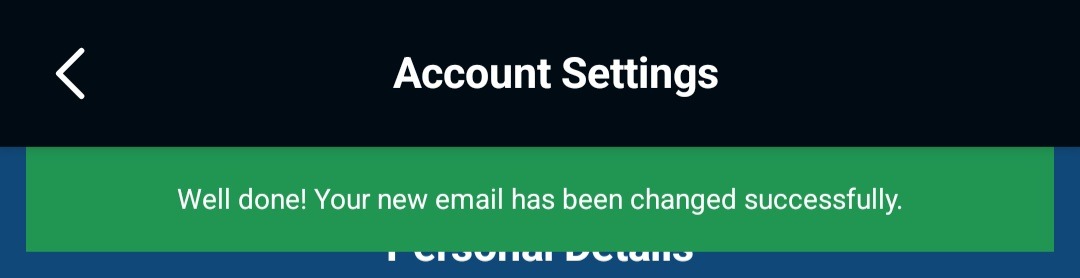
To update your personal information within the Knight Time+ app or on our website, please follow these detailed instructions to ensure your account details are always current and accurate. Maintaining up-to-date information is crucial for a smooth and personalized user experience, as well as for communication regarding your account.
How to Update Your Personal Information:
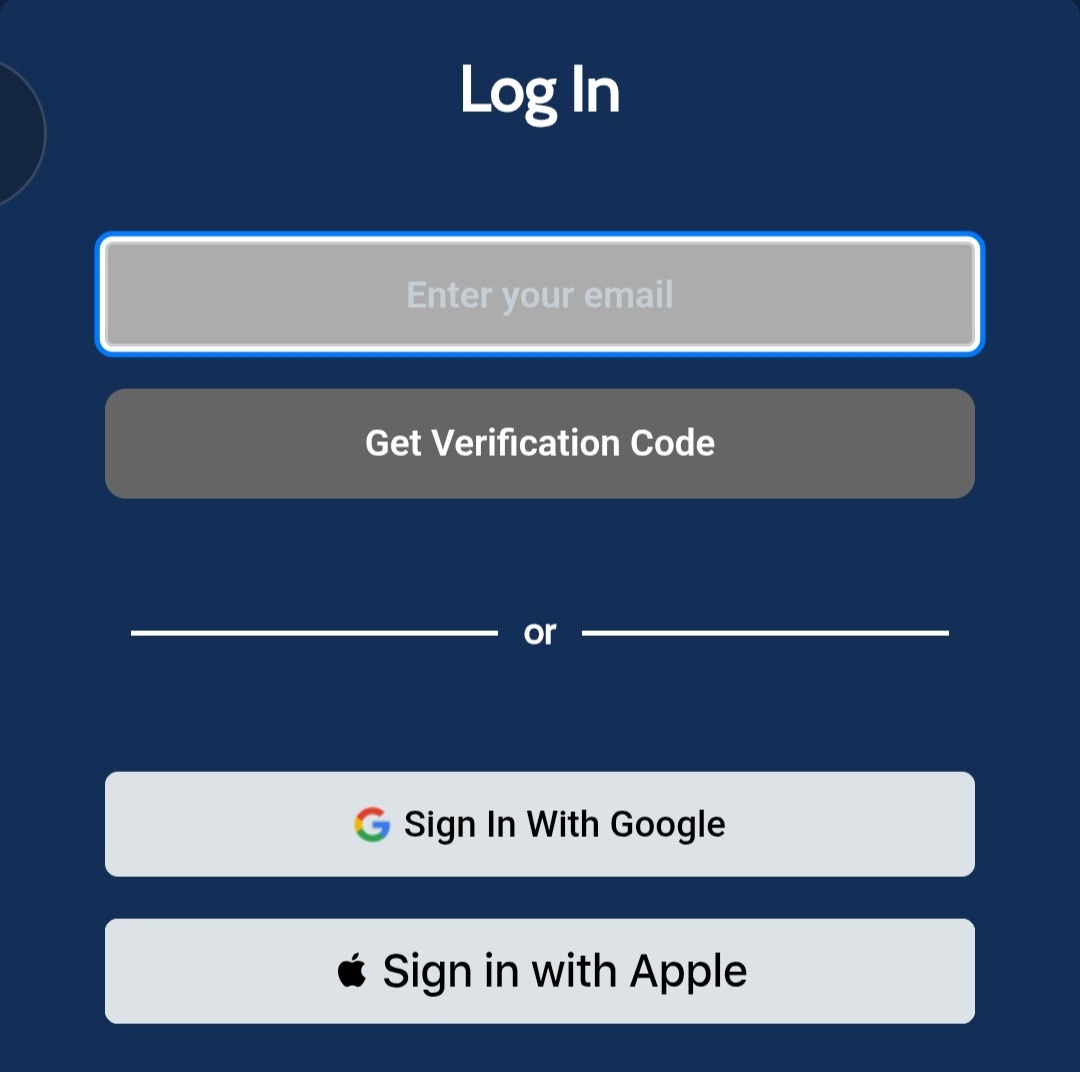
Log In to Your Account:
Begin by signing in to your existing Knight Time+ account. This can be done either through our dedicated mobile application on your smartphone or tablet, or by accessing our official website via your preferred web browser. You will need your registered email address to gain access.
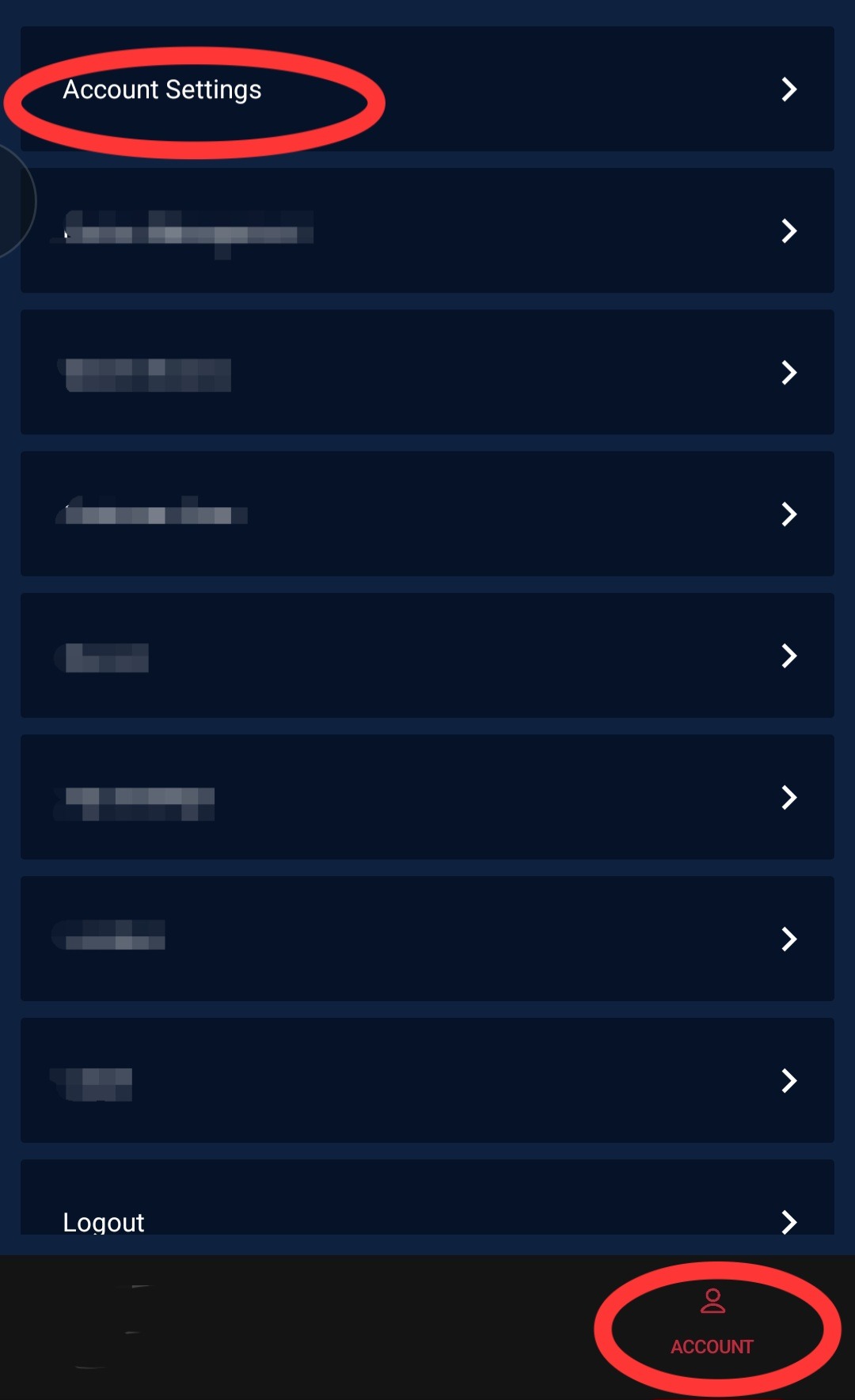
Access Account Settings:
Once you are successfully logged in, navigate to the "Account Settings" or "Profile" section of the platform.
On the Website: Look for an icon typically located in the top-right corner of the screen, often represented by a user silhouette. Alternatively, there might be a "hamburger" menu icon (three horizontal bars) in the top-left corner that, when clicked, reveals a dropdown or side menu containing an "Account" option.
On the App: The menu or navigation options are usually found at the bottom of the screen as a persistent navigation bar, or on the left side of the screen, accessible by tapping a menu icon (often three horizontal lines or dots). Within this menu, seek out "Account".
Edit Your Information:
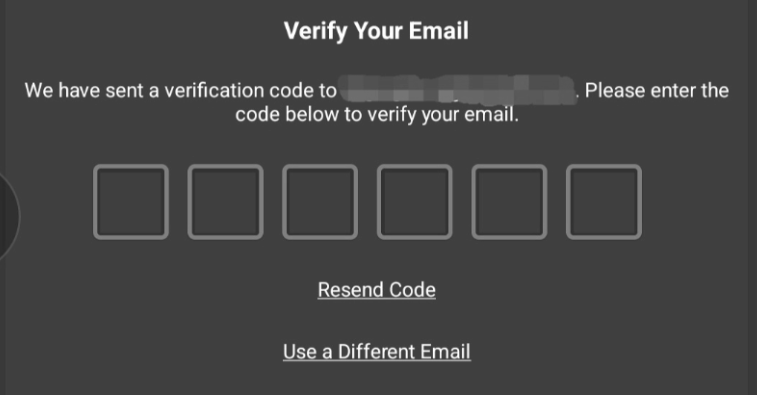
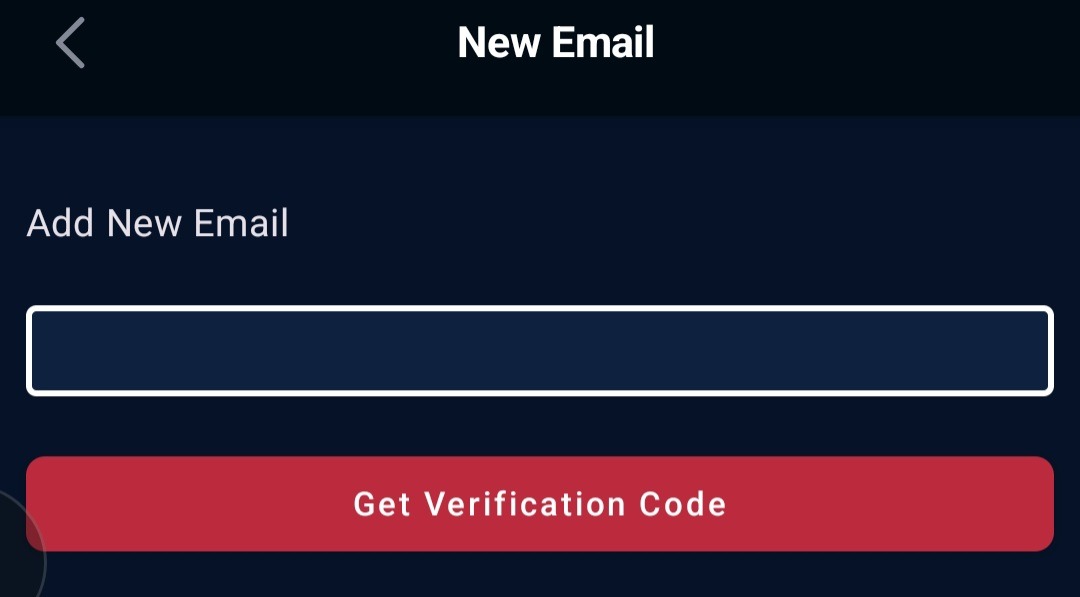
Within the Account Settings section, you will find various fields displaying your personal details. These may include your registered email address, primary phone number, full name, and potentially other customizable preferences. To make changes to any of these fields, locate and click on the "pencil icon" or an "Edit" button adjacent to the specific detail you wish to modify. This action will enable the field, allowing you to type in the new information.
Save Your Changes:
After you have carefully reviewed and updated all the necessary details, it is imperative to save your modifications. Look for a "Save" button, often located at the bottom of the section or next to the individual edited fields. Clicking this button will confirm and apply your updates to your Knight Time account. A confirmation message will typically appear, informing you that your changes have been successfully saved.
Need Assistance?
Should you encounter any difficulties during this process, or if you require further assistance with updating your personal information, please do not hesitate to contact our dedicated support team. Our customer service representatives are available to guide you through the steps and resolve any issues you may experience. You can typically find our contact information, including email support, phone numbers, or a help desk portal, within the "Help" or "Contact Us" section of both the website and the app.
Was this article helpful?
That’s Great!
Thank you for your feedback
Sorry! We couldn't be helpful
Thank you for your feedback
Feedback sent
We appreciate your effort and will try to fix the article