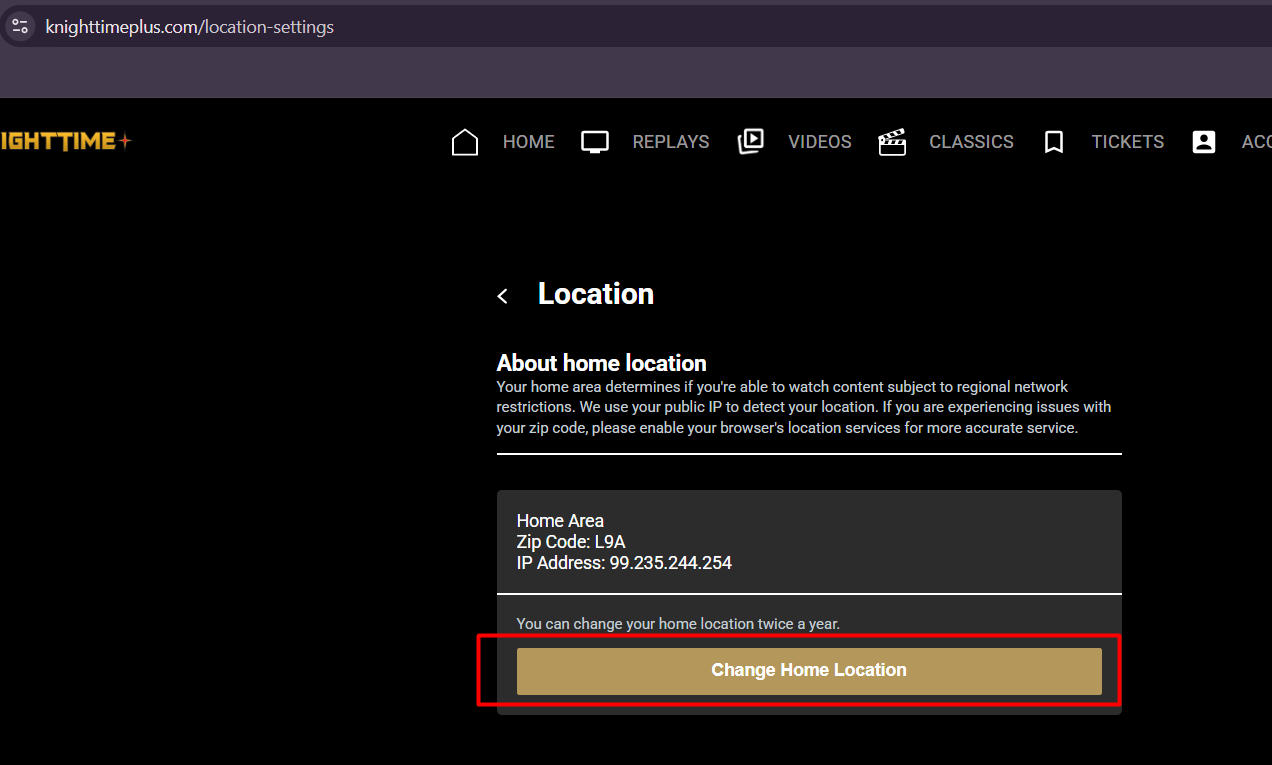
To comply with strict league broadcasting regulations, you must enable location access on all your streaming devices, including smart TVs. This ensures the service can accurately verify your geographical location and confirm you are within the designated broadcast territory for the content you wish to view. You can set your location via this link: https://www.knighttimeplus.com/location-settings
Key Requirements for Location Access:
All Devices: Location access must be enabled on all devices used to access the app, including mobile phones, tablets, smart TVs, streaming sticks, and set-top boxes.
- For TV Devices (Smart TVs, Streaming Devices):
- Go to your device's Settings menu.
- Find Applications or Apps, then select Manage Installed Applications (or a similar option that lists installed apps).
- Locate and select the streaming app you are using.
- Within the app's settings, ensure Location Access or Location Services is enabled.
- Return to the main device Settings and find Preferences or Device Preferences.
- Select Location Settings and confirm the displayed address is accurate. If there are discrepancies, you may need to update your primary address in your account settings and then re-sync your device.
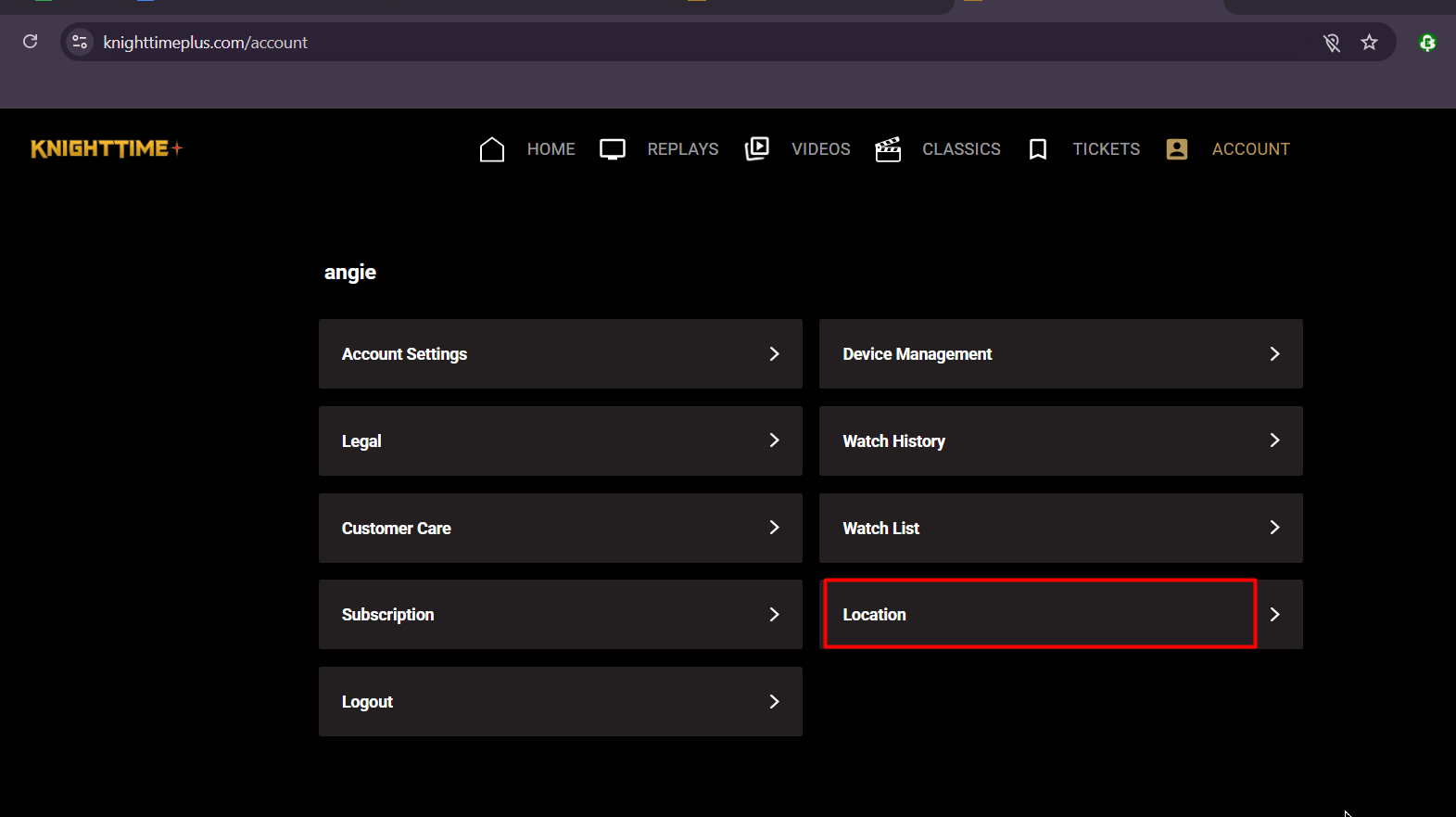
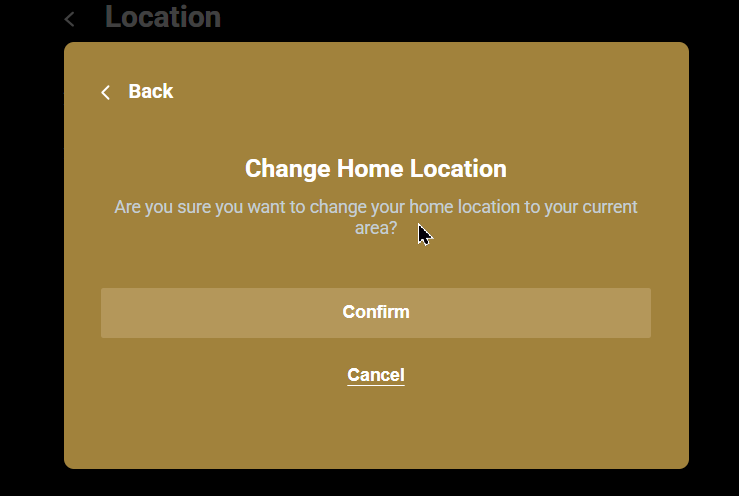
- Within the App: Navigate to Account > Location > Change Home Location > Confirm
Troubleshooting Location Errors:
If you encounter a "location error," it signifies that the service is unable to verify your presence within the authorized broadcast region. To resolve this, consider the following:
Disable VPNs and Proxy Services: Virtual Private Networks (VPNs) and proxy services are designed to mask your true IP address and geographical location. While useful for other purposes, they directly interfere with broadcast compliance checks. You must disable any active VPN or proxy service to allow the app to accurately determine your location and permit content streaming.
Enable GPS (Location Services): Ensure that the Global Positioning System (GPS) or general location services are activated on your device. This allows the app to use available technologies (such as Wi-Fi, cellular networks, and GPS signals) to pinpoint your exact location.
Specific Guidance for Starlink Users: Due to the nature of satellite internet services like Starlink, which can present unique challenges for precise location verification, we recommend a specific approach:
Mobile Device with GPS: Access the streaming app on a mobile device (smartphone or tablet) that has built-in GPS capabilities. This provides the most accurate location data.
Home-Based Authentication: While connected to the same Starlink WiFi network that your other TV devices (smart TVs, streaming sticks) will use, set up Home-Based Authentication from your mobile device. This process helps associate your home network with your verified location, allowing other devices on that network to stream content without needing individual GPS capabilities.
Was this article helpful?
That’s Great!
Thank you for your feedback
Sorry! We couldn't be helpful
Thank you for your feedback
Feedback sent
We appreciate your effort and will try to fix the article